
The 'Blue Gradient' Tax: Why Your CAD Screenshots Are Costing You Sales
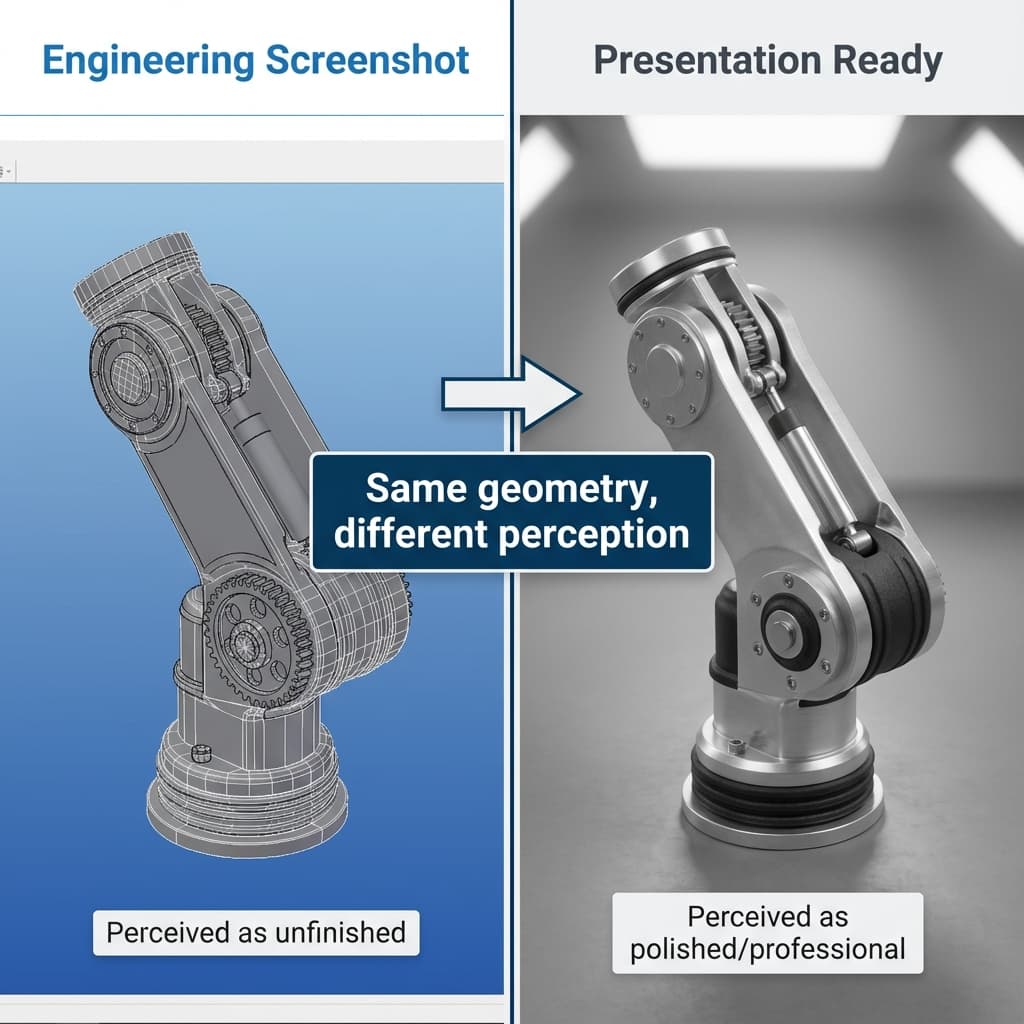
Every engineer has sent that screenshot: the one with the default blue gradient background, RGB axis lines slicing through the product, and a wireframe overlay flickering over solid surfaces.
To you, it communicates "this is the design." To your CEO, investor, or client, it communicates "this is unfinished work." That gap in perception is costing you money.
Part 1: The Cognitive Cost of Low-Fidelity Visuals
The "Prototype Effect" in Decision Making
People evaluate ideas differently based on presentation fidelity. Rough visuals invite critique; polished visuals invite confidence.
Rough visuals invite critique. Polished visuals invite confidence.
When stakeholders see a CAD screenshot with debug overlays, their brain categorizes it as "draft" and enters critique mode. They look for problems. They hedge. They delay approval.
When they see the same geometry in a studio-lit render, their brain categorizes it as "finished product" and enters evaluation mode. They assess market fit. They get excited. They approve.
The "Visibility Tax" in Practice
Industry experience suggests that presentation quality directly correlates with approval speed. Here's a typical pattern:
| Visual Quality | What It Signals | Common Outcome |
|---|---|---|
| CAD Screenshot | “Draft / engineering view” | More questions, more clarifications |
| Basic Render (no styling) | “Getting closer” | Some momentum, some ambiguity |
| Studio-Quality Render | “Product-ready” | Cleaner yes/no decisions |
The “visibility tax” isn’t just aesthetics—it’s extra clarification cycles. At scale, that becomes delayed decisions and slower revenue.
Part 2: Anatomy of the "Engineering Screenshot"
Let's dissect what makes a typical CAD screenshot look "unfinished":
Problems
- Blue gradient background: Signals "software viewport," not "product photo."
- Axis lines: Red/Green/Blue lines scream "3D modeling program."
- Flat lighting: No shadows = no depth perception = looks cheap.
- Wireframe bleed: Hidden edges showing through surfaces.
- Floating parts: No ground plane = no context.
What Stakeholders Expect
- Neutral background: White infinity floor or subtle gradient.
- No overlays: Just the product, nothing else.
- Soft shadows: Ground contact = weight = reality.
- Realistic materials: Metal looks like metal.
- Camera perspective: Natural FOV, not orthographic.
Before and After: The Same Part, Different Perception
Imagine a standard aluminum bracket. Here's how it appears with different presentation approaches:
| Approach | What Stakeholders See | Likely Response |
|---|---|---|
| SolidWorks Viewport Screenshot | Blue gradient, axis lines, gray shading | "Is this final? What's with the lines?" |
| Export PNG (no prep) | White background, flat lighting | "Looks cheap. Can we see textures?" |
| Studio-Lit Render | Soft shadows, realistic aluminum, neutral floor | "This looks great. Approved." |
The 10-Minute Fix
You don't need a render farm. Most of the improvement comes from display settings in your existing CAD tool. Follow the steps below before your next screen share.
Part 3: Quick Fixes in Your Current CAD Tool
Before you render anything, apply these settings in your CAD software:
SolidWorks
- Go to
View → Display → Remove Background Gradient - Disable
View → AxesandView → Origins - Enable
View → Shadows in Shaded Mode - Set background to pure white:
Tools → Options → Colors → Background
Fusion 360
- Switch to
Renderworkspace Setup → Environment Library → Studio Soft- Disable
Ground Planegrid - Set
Background → Color → White
CATIA
View → Render Style → Shading with MaterialTools → Options → Display → Background → White- Disable compass display
Pro Tip: Save these as a "Presentation Mode" view template so you can switch instantly before any screen share.
Part 4: The "Studio Neutral" Standard
Product photographers have a term for the clean, distraction-free setup used in catalogs: studio neutral. The elements are:
- Infinite white floor: No horizon line, no edges—the product floats in context.
- Three-point lighting: Key light (main), fill light (shadows), rim light (edge definition).
- Soft shadows: Area lights, not point lights—shadows fade rather than cut.
- Subtle reflection: Ground reflects the product just enough to show contact.
Recreating this in Blender or KeyShot takes 30–60 minutes of setup. In Reific, it's the default.
Part 5: The Reific Solution
Reific's Quick Mode is designed to eliminate the visibility tax:
Drag in the STEP file
No format conversion. No mesh cleanup.
Auto-Apply Studio Neutral
Infinite floor, soft shadows, and three-point lighting—instantly.
Export or Share
Download a PNG or send a live link—stakeholder sees studio-quality in seconds.
In the time it takes to open SolidWorks Visualize, you've already shipped a presentation-ready image.
Key Takeaways
- ✓Low-fidelity visuals trigger “critique mode” in stakeholders
- ✓Blue gradients, axis lines, and wireframes signal “draft” status
- ✓Studio-neutral setup: white floor, three-point lighting, soft shadows
- ✓Most of the “visibility tax” can be fixed in CAD display settings
FAQ
Is this just about pretty pictures?
No—it's about communication efficiency. Higher-fidelity visuals reduce the number of clarification emails and revision cycles.
What about internal reviews where everyone knows CAD?
Even internal reviews benefit. Engineers reviewing peer work form first impressions too—and cleaner presentation reduces misinterpretation.
How do I create a "Presentation Mode" template?
In SolidWorks: configure display settings, then save as a named Scene. In Fusion 360: save as a custom Appearance setup.
Stop paying the tax.
Reific’s Quick Mode ships with studio lighting and clean backgrounds by default—so you don’t pay the “screenshot tax.”
Convert Your Screenshot