
Death to UV Maps: Why Mechanical Engineers Should Never Have to Do It
If you've ever tried to apply a brushed aluminum texture to a machined part in Blender or KeyShot, you've encountered the nightmare: the grain direction wraps incorrectly around curves, seams appear in random places, and the texture stretches grotesquely over filleted edges.
The solution, according to every tutorial, is "UV unwrapping." But no engineer should ever have to do this. Here's why—and what the alternatives are.
Part 1: What is UV Mapping?
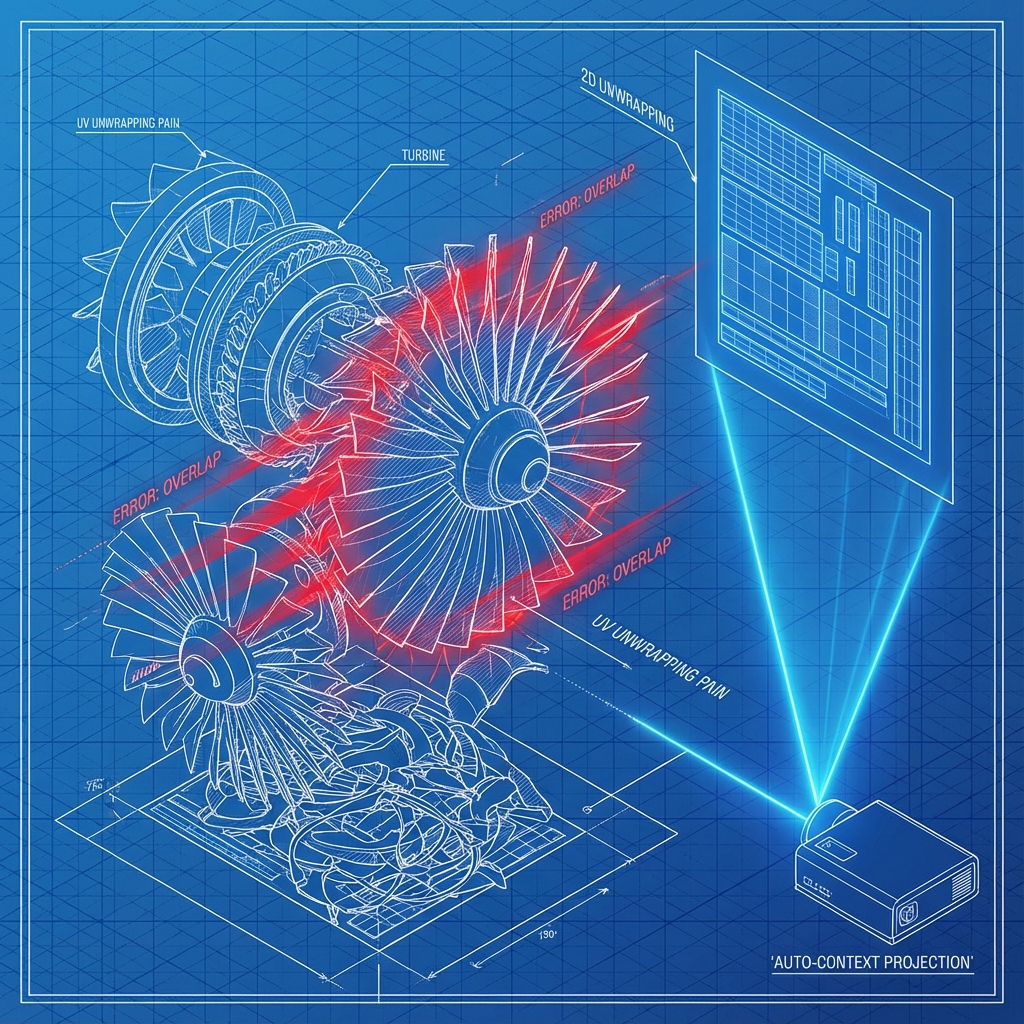
UV mapping is the process of projecting a 2D texture image onto a 3D surface. The letters "U" and "V" represent the axes of the 2D texture space (since X, Y, Z are already used for 3D space).
Imagine you have a globe (3D) and a flat map of Earth (2D). UV mapping is figuring out how to stretch and cut the flat map so it wraps correctly onto the sphere. Every point on the 3D surface needs a corresponding point on the 2D image.
Why It Works for Games and Movies
In entertainment, artists spend significant time hand-crafting UV layouts. A character model can take hours just for UV work. This is acceptable because:
- The model is reused across hundreds of shots or gameplay hours
- The artist has full control over seam placement (hide them under arms, behind ears)
- The geometry is designed to be UV-friendly from the start
Why It Fails for Engineering
CAD geometry is fundamentally different:
| Factor | Game/Film Model | CAD Model |
|---|---|---|
| Geometry changes | Rarely (locked after approval) | Constantly (iterative design) |
| Part count | 1–50 per asset | 100–10,000 per assembly |
| Seam visibility | Hideable (organic shapes) | Visible (hard edges everywhere) |
| Reuse of UV work | High (same asset in many scenes) | Low (every project is unique) |
The ROI on manual UV work for engineering is essentially zero. Every geometry change invalidates the UV work. With 500 parts changing weekly, UV mapping is a non-starter.
UV Unwrap Errors by CAD Tool
If you've searched for help with texture issues in your specific tool, you've probably seen these:
SolidWorks Visualize UV Problems
"Texture stretching on fillets," "decal not aligning," "appearance seams visible." Visualize has limited UV control—you're mostly stuck with projection mapping.
Fusion 360 Texture Mapping Errors
"Render appearance stretched," "material scale wrong," "wood grain not following curve." Fusion's render workspace offers only basic projection—no manual UV editing.
Blender UV Seams on CAD Imports
"Smart UV project fails on mechanical parts," "UV islands overlapping," "texture blurry on curved surfaces." Blender's UV tools expect organic topology, not CAD tessellation.
KeyShot Mapping Mode Issues
"Box mapping distortion on angled faces," "label not wrapping correctly," "brushed finish grain direction wrong." KeyShot offers UV but most engineers never touch it—triplanar is the answer.
Part 2: The Three Texture Projection Methods
There are fundamentally three ways to map textures onto 3D geometry. Understanding them helps you choose the right tool.
1. UV Mapping (Manual)
How it works: Artist manually defines seams, unwraps the mesh, arranges UV islands, and paints the texture.
Engineering Verdict: Unacceptable. Too slow, doesn't survive design changes.
2. Box/Planar/Cylindrical Projection
How it works: The texture is projected from a simple primitive (cube, plane, cylinder) onto the geometry. No seams are cut.
Engineering Verdict: Acceptable for simple shapes. Fails on complex freeform surfaces (stretching, distortion).
In KeyShot, this is the default. You can access it via Right-click material → Mapping Type → Box.
3. Triplanar Mapping (Procedural)
How it works: Three textures are blended based on the surface normal direction. Faces pointing up get the "top" texture; faces pointing sideways get the "side" texture. The blend is automatic.
Engineering Verdict: Excellent. Handles complex geometry, no manual work, survives design changes.
Triplanar mapping is the default in modern game engines (Unreal, Unity) for terrain and rocks. It's less common in traditional rendering software—but it's exactly what CAD visualization needs.
Part 3: How to Set Up Triplanar Mapping in Blender
If you're stuck in Blender, you can set up triplanar mapping manually using shader nodes:
- Open the Shader Editor
Switch to the Shading workspace or open Shader Editor in any layout.
- Add a Texture Coordinate node
Shift+A → Input → Texture Coordinate - Add a Mapping node (optional)
For scale control:
Shift+A → Vector → Mapping - Use "Object" or "Generated" coordinates
Connect
Objectoutput to your texture'sVectorinput. This projects based on object-space position, not UVs. - For true triplanar, use the Geometry node
Connect
Normaloutput to control blend weights between three texture samples.
Shortcut: Search for "Triplanar Mapping" node groups on BlenderKit or Poly Haven. Pre-built setups save hours of node wrangling.
Part 4: The Ideal Material Workflow for CAD
Here's what a properly optimized CAD visualization workflow looks like:
Material Assignment by Part Name
Parts named "STEEL_6061" or "PLASTIC_ABS" are automatically assigned the correct PBR material. Metadata-driven, not manual.
Triplanar Projection by Default
Grain direction, wood patterns, and surface textures are projected based on geometry normals—no UVs required.
Design Update Resilience
When the CAD changes, materials reapply automatically. No re-unwrapping, no seam fixing.
How Reific Handles This
Reific's material engine is built around the principles above:
- We read STEP metadata to auto-assign materials where possible
- Our renderer uses triplanar projection with topology-aware blending
- Grain direction follows the principal curvature of the surface—not arbitrary UV seams
The result: you upload a STEP file with 500 parts, and every part has physically plausible materials in seconds. Not hours.
Key Takeaways
- ✓UV mapping is designed for organic/game models, not mechanical CAD
- ✓Triplanar projection can eliminate UV unwrapping for many engineering materials
- ✓World-space textures make large patterns possible without giant UVs
- ✓Manual UVs don’t scale to large assemblies
FAQ
When do I still need UVs?
For decals (logos, labels) or patterns that must align to specific geometry (carbon fiber weave following a curve), you still need UVs. But this is usually the exception, not the default.
Does triplanar work for transparent materials?
Yes—glass, acrylic, and plastics work fine with triplanar. The projection is independent of material properties.
Can I bake triplanar textures for export?
Yes. Most renderers can bake world-space textures to UV-mapped textures if you need to export to game engines or AR apps.
Stop acting like a texture artist.
Reific applies realistic materials to CAD parts without UV unwrapping—so you stay in engineering, not texture work.
Upload a STEP File Now