
The Modern CAD Visualization Stack for Mechanical Engineers
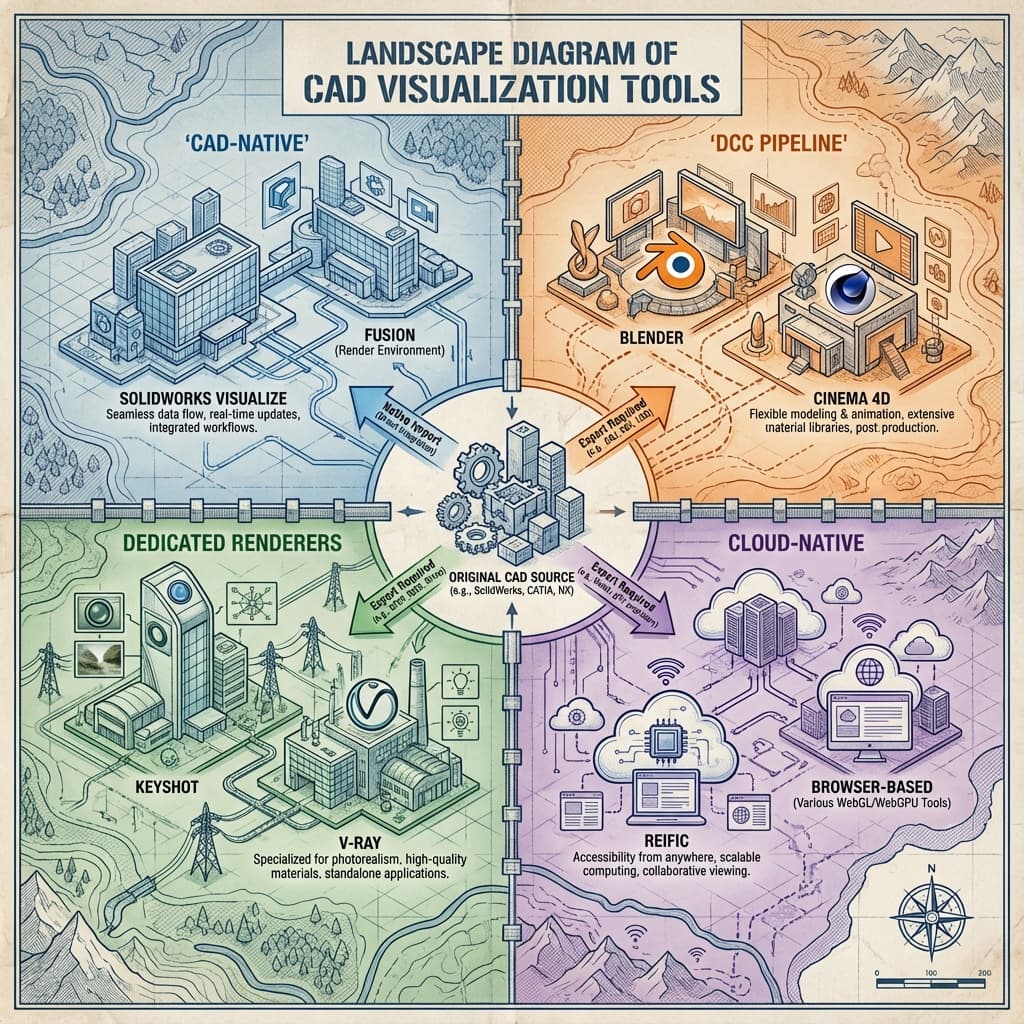
If you're a mechanical engineer who needs to turn CAD into visuals, you're navigating a fragmented landscape. Legacy desktop tools, game-engine renderers, cloud platforms, and AI-powered generators all promise "quick, beautiful renders." But which ones actually work for engineering?
This guide is a map of the terrain. We'll explain how each category works, where it fits in your workflow, and when to use (or avoid) each approach.
The Four Layers of CAD Visualization
Every CAD-to-render workflow passes through four stages. Understanding them clarifies why some tools feel painful and others feel seamless.
| Layer | What Happens | Who Owns This |
|---|---|---|
| 1. Source Data | STEP/IGES/native CAD files with NURBS geometry | SolidWorks, Fusion 360, CATIA, Creo |
| 2. Geometry Conversion | Tessellation to mesh (OBJ/FBX) or pass-through | Export scripts, converters, or native import |
| 3. Scene Setup | Materials, lighting, camera, environment | Render software (KeyShot, Blender, etc.) |
| 4. Rendering | Ray tracing / path tracing computation | Local GPU, cloud GPU, or hybrid |
Pain happens when layers don't communicate. If Layer 2 (geometry conversion) breaks, you're stuck fixing mesh errors. If Layer 4 (rendering) is slow, you're waiting hours for feedback.
Category 1: CAD-Native Renderers
Examples: SolidWorks Visualize, Fusion 360 Rendering, CATIA Live Rendering
These are built into (or tightly coupled with) your CAD tool. They read native geometry without export, which eliminates Layer 2 pain.
Strengths
No mesh conversion errors. Assembly metadata preserved. Familiar interface.
Weaknesses
Slow (local CPU/GPU only). Limited material libraries. No collaboration features.
Best for: Quick previews during design. Not ideal for final marketing renders or stakeholder reviews.
Related: SolidWorks Visualize Taking Forever?
Category 2: DCC Render Engines
Examples: Blender Cycles, Cinema4D, Maya Arnold, 3ds Max V-Ray
Digital Content Creation (DCC) tools are designed for artists—animators, VFX supervisors, game developers. They're powerful but expect you to speak "mesh."
Strengths
Maximum flexibility. Blender is free and very capable. Large community and tutorials.
Weaknesses
Requires mesh export from CAD. UV mapping often required. Steep learning curve (50-100 hrs).
Best for: Engineers who need animation or have time to invest in learning. Not ideal for fast iteration on CAD changes.
Related: The Non-Manifold Trap | Death to UV Maps
Category 3: Dedicated Product Renderers
Examples: KeyShot, Autodesk VRED, Luxion Modo
These tools are purpose-built for product visualization. They import CAD files natively and focus on drag-and-drop material application.
Strengths
Native STEP/IGES import. Excellent material libraries. Industry-proven quality.
Weaknesses
Expensive ($1,188+/year). Render on local hardware. No built-in collaboration.
Best for: Professional studios with dedicated render hardware and established workflows.
Related: KeyShot vs Blender vs Reific
Category 4: Cloud-Native Platforms
Examples: Reific, cloud render farms, web-based viewers
This is the emerging category. Instead of rendering on your machine, you upload geometry and stream pixels back. Your laptop becomes a remote display.
Strengths
No local hardware requirements. Renders in seconds, not hours. Built-in sharing/collaboration.
Weaknesses
Requires internet connection. Data leaves your machine. New category (fewer integrations).
Best for: Teams who need fast iteration, cross-device access, and built-in stakeholder sharing.
Related: Rendering on a MacBook | Zero-Trust Sharing
Category 5: AI Image Generators
Examples: Midjourney, DALL-E, Stable Diffusion
AI generators create stunning visuals from text prompts. But they don't understand 3D geometry—they're pattern-matching on 2D pixels.
⚠️ Engineering Warning
AI generators will invent geometry. That bolt might have 6 threads or 8 or spiral the wrong way. The cylinder might not be cylindrical. For marketing concept art, this is fine. For engineering validation, this is catastrophic.
Best for: Early concept exploration. Not for anything where dimensional accuracy matters.
Related: The Geometry-Lock Protocol
Decision Framework: Which Stack Do You Need?
| Your Situation | Recommended Stack |
|---|---|
| Quick preview during design | CAD-native renderer |
| Final marketing renders, have time | KeyShot or Blender |
| Fast iteration, stakeholder sharing | Cloud-native (Reific) |
| Animation / VFX | Blender or Cinema4D |
| Mac user, large assemblies | Cloud-native |
| Concept exploration only | AI generators (with caution) |
Key Takeaways
- ✓The CAD visualization stack has 4 layers: source data, conversion, scene setup, rendering
- ✓Pain comes from layer mismatches (mesh conversion, slow local GPUs)
- ✓Cloud-native platforms are a new category that eliminates hardware bottlenecks
- ✓AI generators are great for concepts, dangerous for engineering accuracy
Ready to try a cloud-native approach?
If cloud-native is the right category for your team, Reific is built specifically for CAD ingestion, fast renders, and link-based collaboration.
Join the Waitlist