
Rendering Large Assemblies on a MacBook Air: It Is Finally Possible
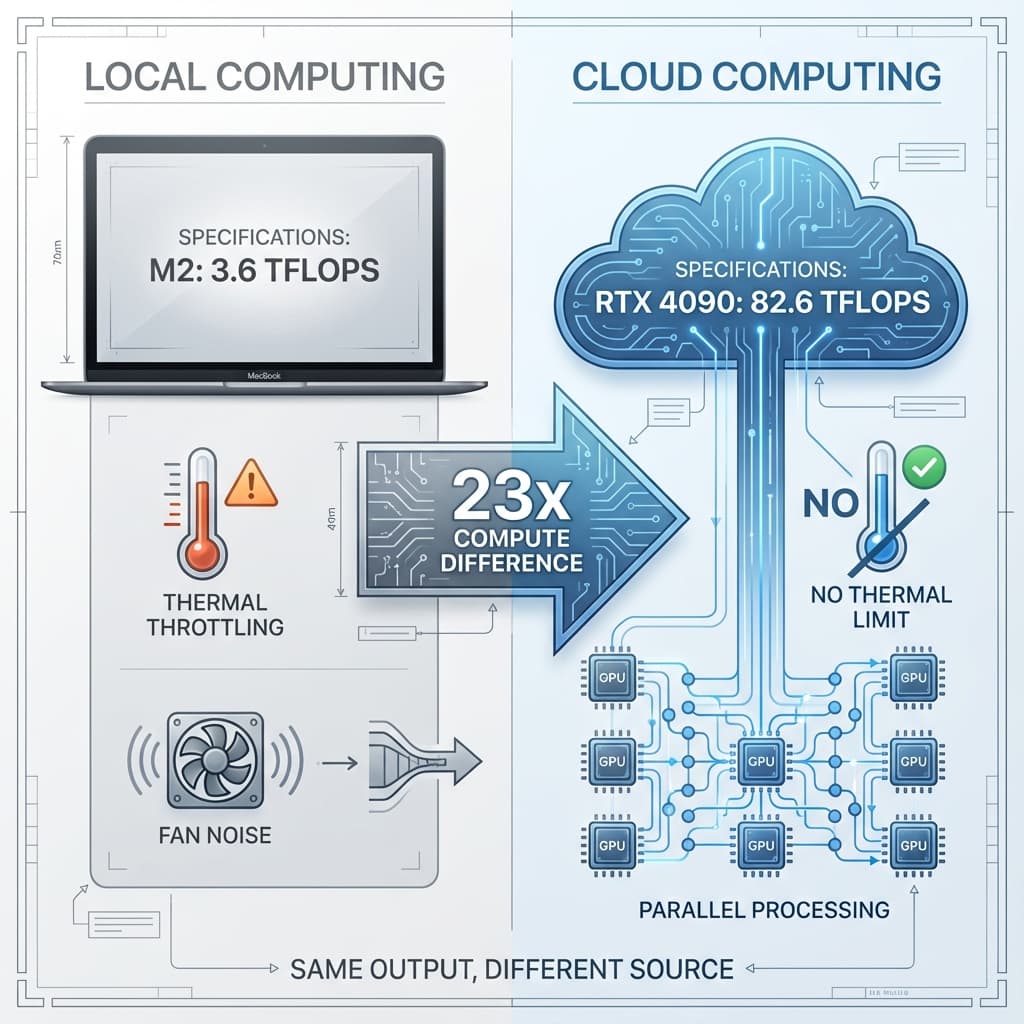
The "Mac vs. PC" debate in engineering usually ends with: "Get a PC, Macs can't handle the graphics."
For years, this was true. Loading a 2,000-part assembly in a local renderer on a MacBook Air crashed the system. But the rules have changed.
The Old Bottleneck: Local GPU Limits
Local rendering requires your GPU to:
- Load all geometry into VRAM (often 8–16GB for complex assemblies)
- Tessellate NURBS surfaces into triangles
- Calculate millions of ray-surface intersections per frame
- Compute lighting, materials, reflections, and shadows
Apple Silicon Macs have excellent integrated GPUs, but they share unified memory with the CPU and aren't optimized for path tracing workloads. The result: thermal throttling, crashes, or renders measured in hours.
Mac Rendering Problems You've Googled
If any of these sound familiar, you've hit the local rendering wall:
- "MacBook Air overheating during render" — Fanless machines can throttle under sustained load
- "M1/M2 GPU slow in Blender Cycles" — Metal support is improving, but performance can vary by renderer and scene
- "MacBook fan noise during KeyShot render" — Local renders can make laptops hot and loud
- "Fusion 360 render crashes on Mac" — Large assemblies exhaust unified memory and force quit
- "Why is Blender so slow on Mac?" — Path tracing is compute-bound; NVIDIA RTX cores are purpose-built for it
Apple Silicon Constraints (What Matters)
| Chip | GPU Cores | Unified Memory |
|---|---|---|
| Apple M2 (8-core) | 8 | 8–16GB |
| Apple M2 (10-core) | 10 | 8–24GB |
| Apple M2 Pro | 19 | 16–32GB |
| Apple M2 Max | 38 | 32–96GB |
The important point isn’t a single benchmark number—it’s that these are integrated GPUs sharing unified memory. For heavy path tracing and very large assemblies, discrete RTX-class desktops and cloud GPUs can be significantly faster.
The New Architecture: Decoupled Compute
Reific decouples the "View" from the "Process":
| Task | Local Rendering | Cloud Rendering |
|---|---|---|
| Geometry loading | Your unified memory | Server memory / GPU VRAM |
| Tessellation | Your CPU/GPU | Cloud compute cluster |
| Ray tracing | Your GPU | Cloud GPUs |
| Final display | Your GPU | Your browser (pixels only) |
Your MacBook becomes a remote control. The heavy compute happens elsewhere.
What Changes With Cloud Rendering
Exact timings vary, but the qualitative differences are consistent:
| Metric | Local Laptop Rendering | Cloud Rendering |
|---|---|---|
| File load reliability | Limited by local memory/VRAM | Handled on server |
| Preview iteration | Slower; machine is busy | Faster; Mac stays responsive |
| Thermals / noise | Hot/noisy under sustained load | Quiet (compute off-device) |
| Battery impact | Higher drain | Lower drain |
The Browser is the Workstation
Because Reific runs entirely in Chrome or Safari:
- No software installation: Open a URL, start working
- Cross-platform: Same experience on macOS, Windows, Linux, ChromeOS
- Device-agnostic: Works on laptop, desktop, iPad, even Chromebooks
- Always updated: No version management, no compatibility issues
Key Takeaways
- ✓Apple Silicon is great, but local path tracing can bottleneck on heavy scenes
- ✓Cloud rendering eliminates the hardware bottleneck entirely
- ✓Your Mac stays cool, quiet, and battery-efficient
- ✓Browser-based means no installs, cross-platform by default
FAQ
Does this work on Intel Macs?
Yes—your Mac is just displaying streamed pixels. The GPU power comes from the cloud.
What about offline work?
Cloud rendering requires an internet connection. For offline scenarios, consider caching pre-rendered views.
Is the latency noticeable?
For viewport interaction, most users report the experience feels close to native on a solid connection.
Unleash your Mac.
Reific offloads compute to the cloud, so even large assemblies stay responsive on a MacBook while you review and iterate.
Render on Mac