
From CAD to Browser: How to Share 3D Models with Non-Engineers Safely
Your CEO wants to see the new design. Your investor asks for "a 3D view." The contract manufacturer needs to review the assembly before quoting. None of them have CAD software.
How do you share a 3D model without sending the actual file—and without spending 3 hours creating render decks?
The Problem: Different Audiences, Different Needs
Stakeholders who need to see your CAD work fall into categories:
| Audience | What They Need | Risk If You Send STEP |
|---|---|---|
| Executives / Founders | Quick visual, marketing quality | Low (they won't open it anyway) |
| Investors | Product vision, can orbit around | Medium (may forward to advisors) |
| Contract Manufacturers | Full geometry for quoting | High (they have CAD software) |
| Sales / Marketing | Assets for decks and website | Low (they need images anyway) |
| Potential Customers | Interactive preview of product | High (competitive intelligence) |
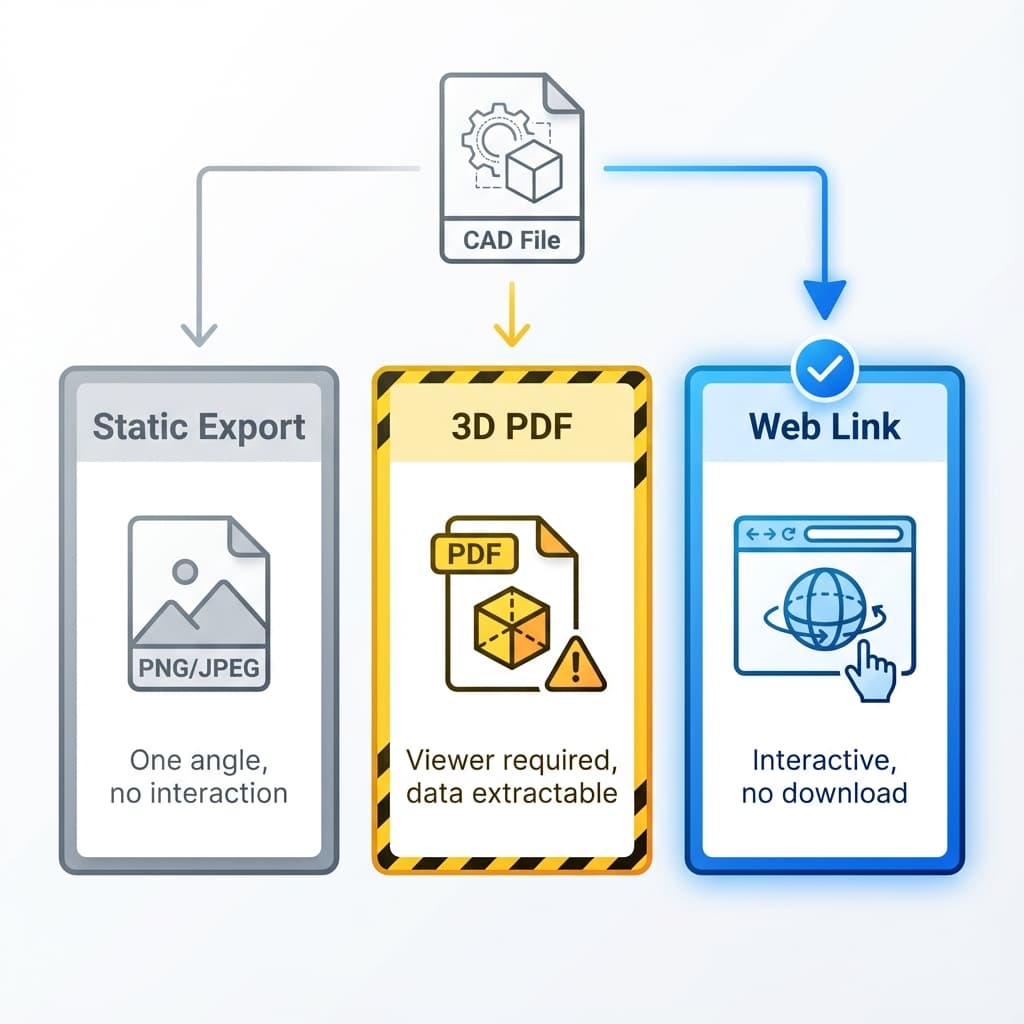
Option 1: Static Images (PNG/JPEG)
The simplest approach: render once, share the image file.
Pros
- ✓No IP exposure (it's just pixels)
- ✓Works in any email/chat
- ✓Small file size
Cons
- −Fixed viewpoint—can't rotate
- −Need to re-render for each angle
- −No interactivity
Best for: Marketing team assets, quick updates to executives
Option 2: PDF 3D (Embedded in Document)
Some CAD tools can export 3D PDFs with embedded viewer controls. The recipient can rotate the model inside Adobe Reader.
Pros
- ✓Interactive rotation
- ✓Works offline
- ✓Familiar PDF format
Cons
- −Contains tessellated mesh (extractable)
- −Poor mobile support
- −Clunky viewer controls
Best for: Internal documentation, design reviews where IP isn't a concern
Option 3: Web-Based Viewer Links
Upload your CAD to a cloud platform, share a link. The recipient views in their browser—no software download.
Pros
- ✓Full interactivity (orbit, zoom, pan)
- ✓Works on any device with a browser
- ✓Can add expiration and access controls
Considerations
- !Check if viewer allows download
- !Data goes to the cloud
- !Need to trust the platform
Best for: Stakeholder reviews, investor demos, customer previews
The "Pixels, Not Files" Principle
The safest approach is to never send geometry at all. Instead, send rendered pixels—either as images or as streamed viewport data.
"If they can rotate it but not download it, you've shared a view, not the design."
This is how pixel-streaming cloud viewers work: they render on the server and stream pixels to the browser. The recipient gets a fully interactive 3D experience without receiving a downloadable CAD/mesh file from the session.
Important: Not every “web viewer” is pixel-streaming. Many tools load a tessellated mesh in the browser—which may be extractable. Always check whether downloads (OBJ/STL/GLB) are possible.
See: Zero-Trust Sharing for a deep dive.
Checklist: Before You Share
Decision Matrix
| Scenario | Recommended Method |
|---|---|
| CEO wants quick update | Static render + email |
| Investor demo | Web viewer with commenting |
| Supplier RFQ (trusted, under NDA) | Private link, expiring, no download |
| Supplier RFQ (needs to manufacture) | STEP file after signed contract |
| Customer co-design review | View-only link with spatial comments |
| Marketing needs assets | High-res PNG renders |
Key Takeaways
- ✓Match the sharing method to the audience’s needs and IP risk
- ✓Static images are safest but not interactive
- ✓Web viewers offer interactivity—check download permissions
- ✓“Pixels, not files” is the gold standard for external sharing
Share the view. Keep the file.
Reific streams pixels-not-files, so stakeholders can orbit, review, and comment without receiving exportable geometry.
Try Secure Sharing